 Witness Record
How to record on iPhone with your screen off
Four methods, the settings that stop it failing halfway, and how to start without unlocking.
One correction before the instructions, because it saves you an hour: iOS will not record with the display genuinely powered down. Camera capture ends when an app leaves the foreground or the device locks, and no ordinary third-party app is exempt. What is achievable is a screen at zero brightness rendering nothing, which on an OLED iPhone is indistinguishable from a phone that is off.
Why that limit exists, what the green camera indicator is and why nothing can hide it, and when recording discreetly is lawful in the first place, are all worked through on the page about what screen-off recording actually means. This page is the practical one: what to tap, in what order, and what to change first so it does not stop on you.
Step one: the four settings that matter
Do these before you try any of the methods. Every "it stopped recording by itself" report I have had traced back to one of the first two.
Turn off Auto-Brightness
Settings → Accessibility → Display & Text Size → Auto-Brightness, off.
Leave it on and iOS will quietly raise the display when the ambient light changes, which is exactly what happens when you walk out of a building. Your dark screen lights back up and you do not find out until someone tells you.
Set Auto-Lock to Never
Settings → Display & Brightness → Auto-Lock → Never.
This is the big one. A locking device ends camera capture, so a thirty-second auto-lock timer will end a recording thirty seconds after you last touched the screen. Note that Low Power Mode forces Auto-Lock to thirty seconds and greys the setting out, which is a genuinely nasty interaction: the moment the battery drops below twenty per cent and you tap Yes on the prompt, your recording is on a thirty-second fuse.
Apps built for this generally hold a wake lock so the phone will not sleep, which sidesteps the problem. The stock Camera app does not need to, because it is in the foreground with the screen on. Shortcut-based approaches are where this bites.
Turn on a Focus mode
Control Centre → Focus → Do Not Disturb.
An incoming call takes over the screen and pushes the camera to the background, which ends the recording. Calls are the second most common cause after auto-lock. If you want calls from one person to still come through, set that as an allowed contact rather than leaving the whole thing open.
Lock the rotation
Control Centre → the padlock-with-arrow button.
You cannot see the frame, so you cannot see it flip. Decide landscape or portrait before you start and lock it. Landscape is the better default for anything that might be evidence: it matches how footage is reviewed and it gives you more of the scene either side.
Worth doing once, tonight. All four are permanent settings, not per-recording steps. Set them now and the only decision left in the moment is how to start.
Step two: pick a method
Method 1 — Manual brightness with the stock Camera app
Free, no install, works right now.
- Swipe into Control Centre and drag the brightness slider all the way to the bottom.
- Open Camera, switch to Video.
- Start recording.
What you get: a very dim screen. Not black. In daylight it reads as a phone someone has turned down; in a dark room the viewfinder is faintly visible and recognisable as a camera if someone is looking. Apple's slider does not reach zero.
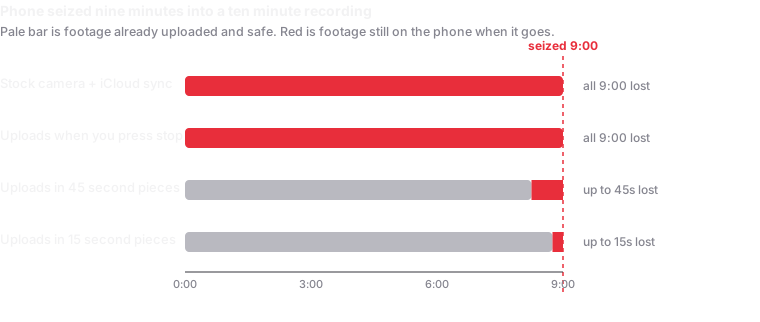
Where it fails: your recording is one file that iCloud will not begin uploading until you press stop, and a large one at that. If the phone leaves your hands mid-recording, the whole thing goes with it.
Method 2 — A Siri shortcut
Free, hands-free, and worth setting up whatever else you use, because it is the fastest way to start a recording without touching the phone.
- Open the Shortcuts app and create a new shortcut.
- Add Set Brightness to 0%, then Set Focus to Do Not Disturb.
- Add Open App → Camera, or the recording app you use.
- Optionally add Send Message to a contact with your current location.
- Rename the shortcut to the phrase you want to say. Something you would plausibly say out loud, and would not say by accident.
What you get: one spoken phrase that dims the display, silences the phone, tells someone where you are and opens the camera. Apple publishes several variations on this and there are good community ones.
Where it fails: Shortcuts cannot press the record button in the stock Camera app, so the last tap is still yours unless you point it at an app that starts recording on launch. And it still records to the camera roll, which means it still uploads only after you stop.
Method 3 — The Action Button or a Lock Screen widget
On iPhone 15 Pro and later there is a physical Action Button, and every modern iPhone has Lock Screen widgets and Control Centre controls. Any of these can launch a shortcut or an app from a locked phone without Face ID, without unlocking, and without looking at the screen.
This is the part most people skip and it is the part that matters most in practice. A method that requires you to unlock the phone, find an app and tap a button is a method that takes eight seconds and a look down. A physical button is one press with the phone still at your side.
Back Tap is worth knowing too: Settings → Accessibility → Touch → Back Tap assigns a shortcut to a double or triple tap on the back of the phone. It is less reliable than a real button and it works through most cases.
Method 4 — An app built for it
I make one, so treat this section as interested rather than neutral.
A purpose-built app can do the two things the methods above cannot: render an actually black view at zero brightness rather than a dim viewfinder, and require a deliberate gesture to stop so a stray touch or someone grabbing the phone does not end the recording. Witness uses a triple-tap followed by a press-and-hold, and restores your previous brightness when the recording ends.
The feature I would actually argue for is a different one, and it has nothing to do with the screen: uploading while the recording is still running.
Troubleshooting
| What happened | Almost always |
|---|---|
| Recording stopped after 30 seconds | Low Power Mode forced Auto-Lock to 30 seconds. Charge above 20% or turn Low Power Mode off. |
| Recording stopped after a minute or two | Auto-Lock. Set it to Never. |
| Screen brightened by itself | Auto-Brightness. Turn it off in Accessibility, not in Control Centre. |
| Recording ended when someone called | Calls background the app. Use a Focus mode. |
| Footage is sideways | Rotation was not locked. Lock it before starting. |
| Green dot still visible | Working as designed. No app can disable it; at zero brightness it is unlit along with everything else, but raising the brightness reveals it. |
| Nothing uploaded | Either no signal, or the app uploads only on stop. These are different problems with different fixes. |
| Phone got hot and quality dropped | Thermal throttling, common at 4K. Drop to 1080p for anything long. |
Battery, honestly
A black screen on an OLED iPhone costs close to nothing to display, and the display is normally a large share of power draw, so you do gain. But while recording, the camera sensor, the video encoder and any upload are all running at full cost and they dominate the total. Expect a useful improvement in recording time, not a transformative one.
Dropping from 4K to 1080p does more for battery and heat than the screen does. For anything long, bring a power bank; that advice has not changed in a decade.
The part that decides whether you should do this
A dark screen changes what a recording looks like. It changes nothing about whether you are allowed to make it.
Recording on-duty police in public is constitutionally protected in the United States when you are lawfully present and not interfering, and every federal circuit to squarely consider it has said so. Recording private individuals is an entirely different question: a minority of states require every party to a conversation to consent, and those statutes carry real penalties. Recording anyone somewhere they have a reasonable expectation of privacy is a serious criminal offence essentially everywhere.
If the reason you want a dark screen is that the person being recorded would object if they knew, find out what the law where you live says before you do it. That is practical advice, not a disclaimer.
Related
- What "screen off" actually means on iOS, the camera indicator, and the limits no app can work around.
- How to film the police, step by step, where a dark screen fits into distance, framing and narration.
- What the courts have held about filming law enforcement, seizure, and audio consent.
- How the upload works, if footage surviving is what you actually came for.
Written September 2026, against iOS 26. Apple moves these settings and changes these behaviours between releases, so check the menu paths if yours differ. Nothing here is legal advice.